PureRAT — Setup Guide
Answers to common questions and troubleshooting tips to help you get the most out of the software.
What are the requirements?
You'll need a Windows VPS running Windows Server 2019 or higher. Make sure the VPS has open ports, most providers have this enabled by default. Optionally, you can purchase a crypter to make the file Fully UnDetectable (FUD).
How can I get the latest PureRAT update?
PureRAT includes an auto-update feature. When you log in, you'll be notified if a new update is available.
What crypters (encryptors) work with PureRAT?
- Any good crypter should work, our RAT doesn't need special requirements.
- Ask the crypter seller about PureRAT compatibility.
- Remember that PureRAT client is .NET v4.0 32bit.
- Make sure to test the crypted file using the HVNC plugin to ensure the crypt is functioning properly without any issues.
How can I change my HWID and move to a new VPS?
When you log in from a new VPS, our Telegram bot will prompt you to confirm if you'd like to use the new VPS. Once you accept, your HWID will be linked to the new VPS. Please note, you can move to up to 5 different VPS instances. After reaching the 6th, a small fee will apply.
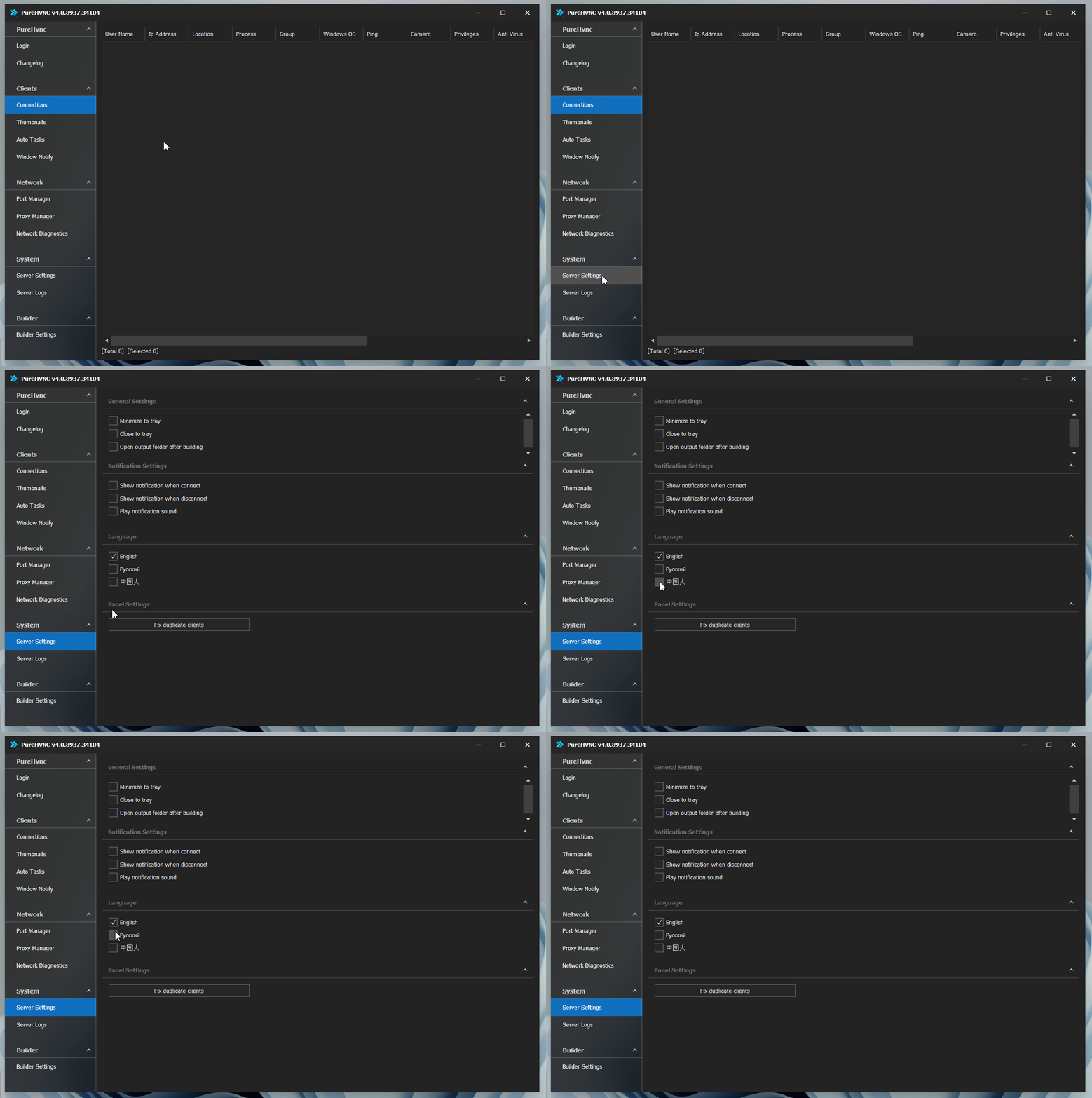
How to change GUI language?
- Click "Server Settings"
- On "Language" page, select any language you want.
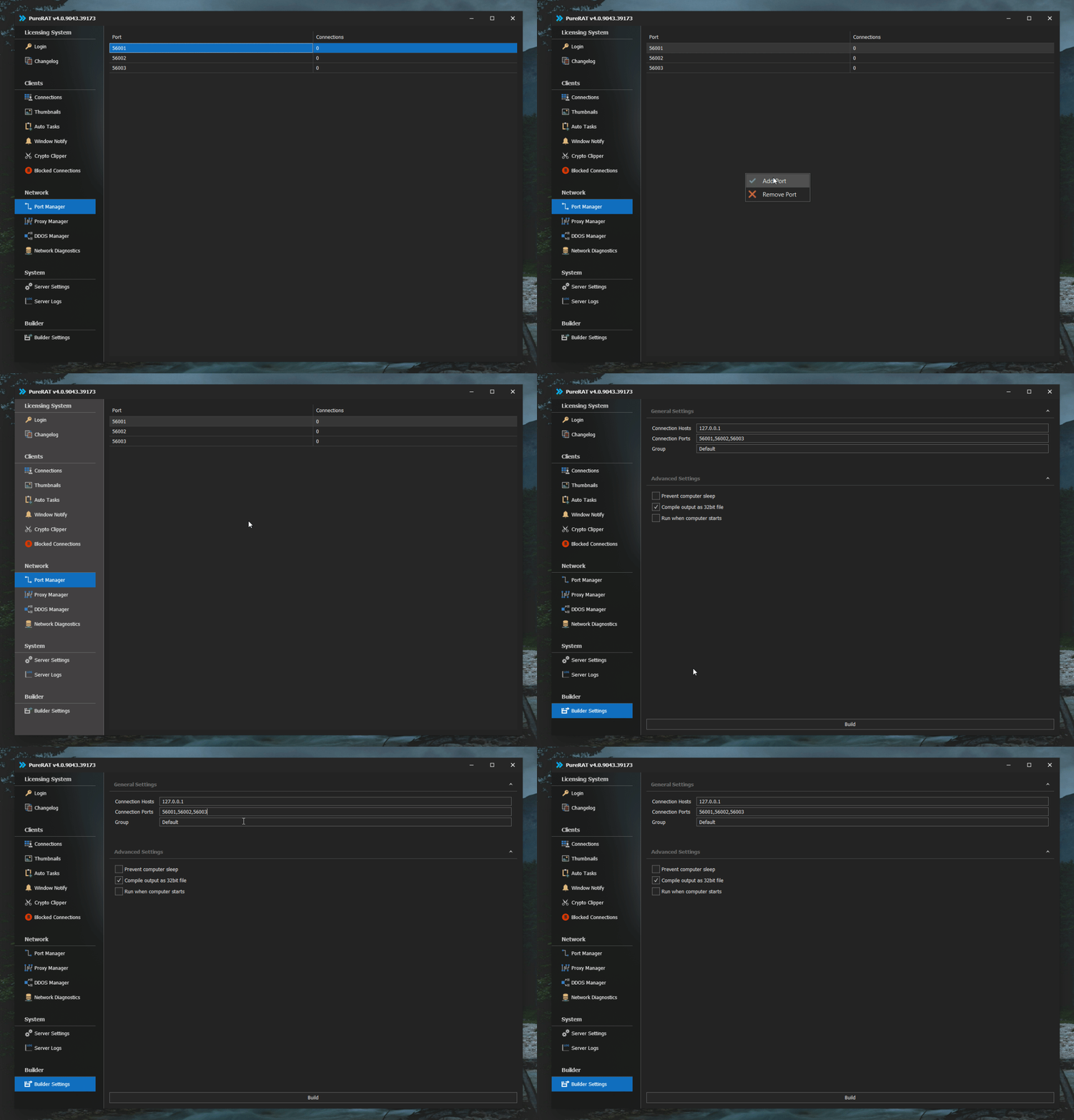
How to build a client.exe?
- Go to "Port Manager" and add a port or just leave it at the default ports.
- Go to "Builder Settings" and enter your VPS IP or DDNS or Domain and ports on "Port Manager".
- You can add multi ports and domains by splitting them using a comma.
- Press Build.
Why is my client not showing on my server?
- Make sure you followed "How to build a client.exe?" steps.
- If you are using a VPN, disable it.
- Disable Windows Defender.
- Ensure the correct port is open. Use a port checker tool to verify.
- Test on a clean virtual machine (VM) to avoid conflicts.
- Verify that the build is configured with your VPS's correct IP address and port.
- Download and install "System Informer", search for your build, right-click, and select "Terminate" to kill it.
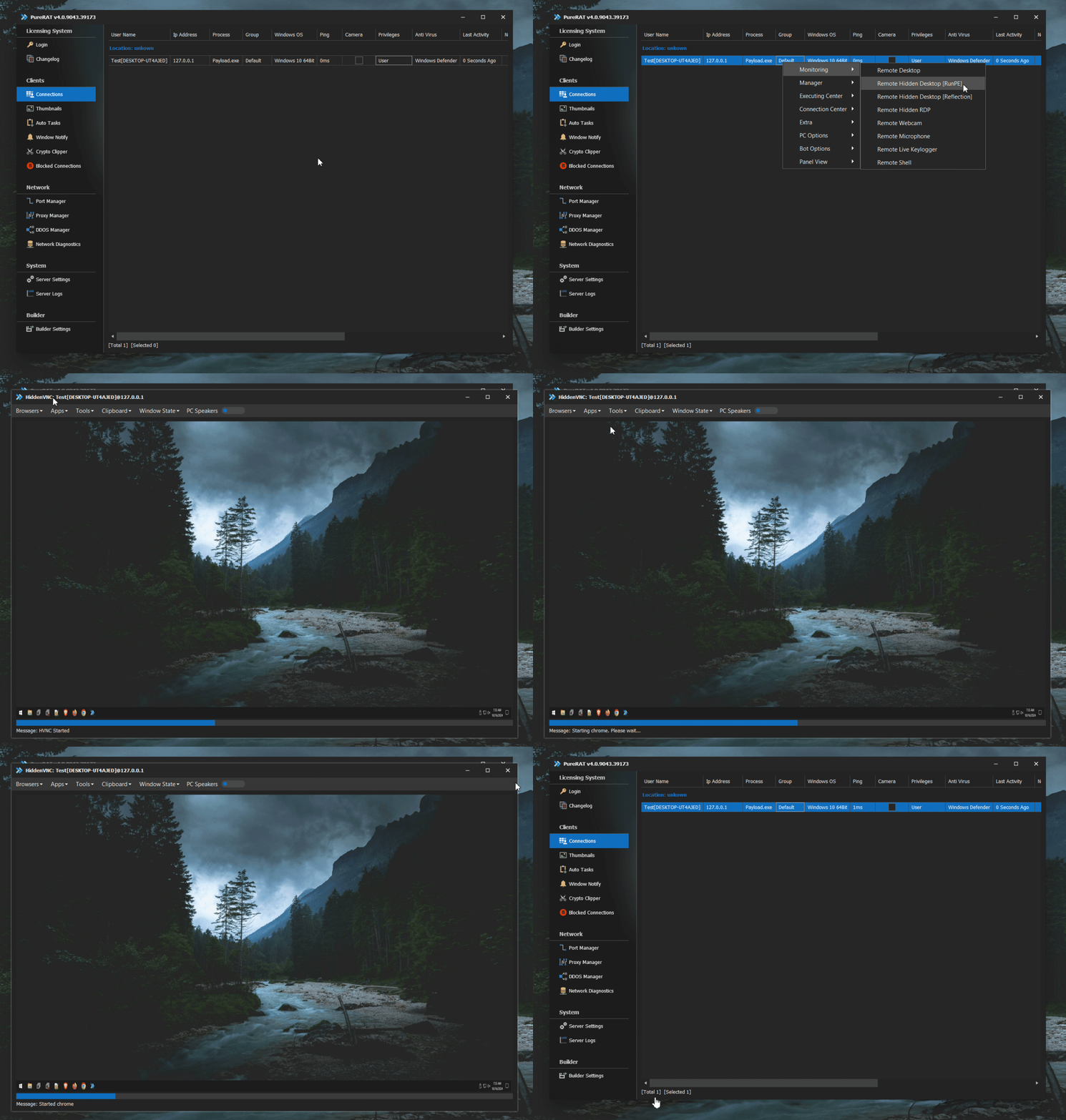
Why browsers on HVNC are black/white?
- Use Process Hollowing version of HVNC, if already using it then switch to Reflection.
- Select clone profile.
- Try WebGL CPU or GPU.
- If client has multiple monitors, select the correct one in monitor menu, then refresh the browser.
How do I use HRDP?
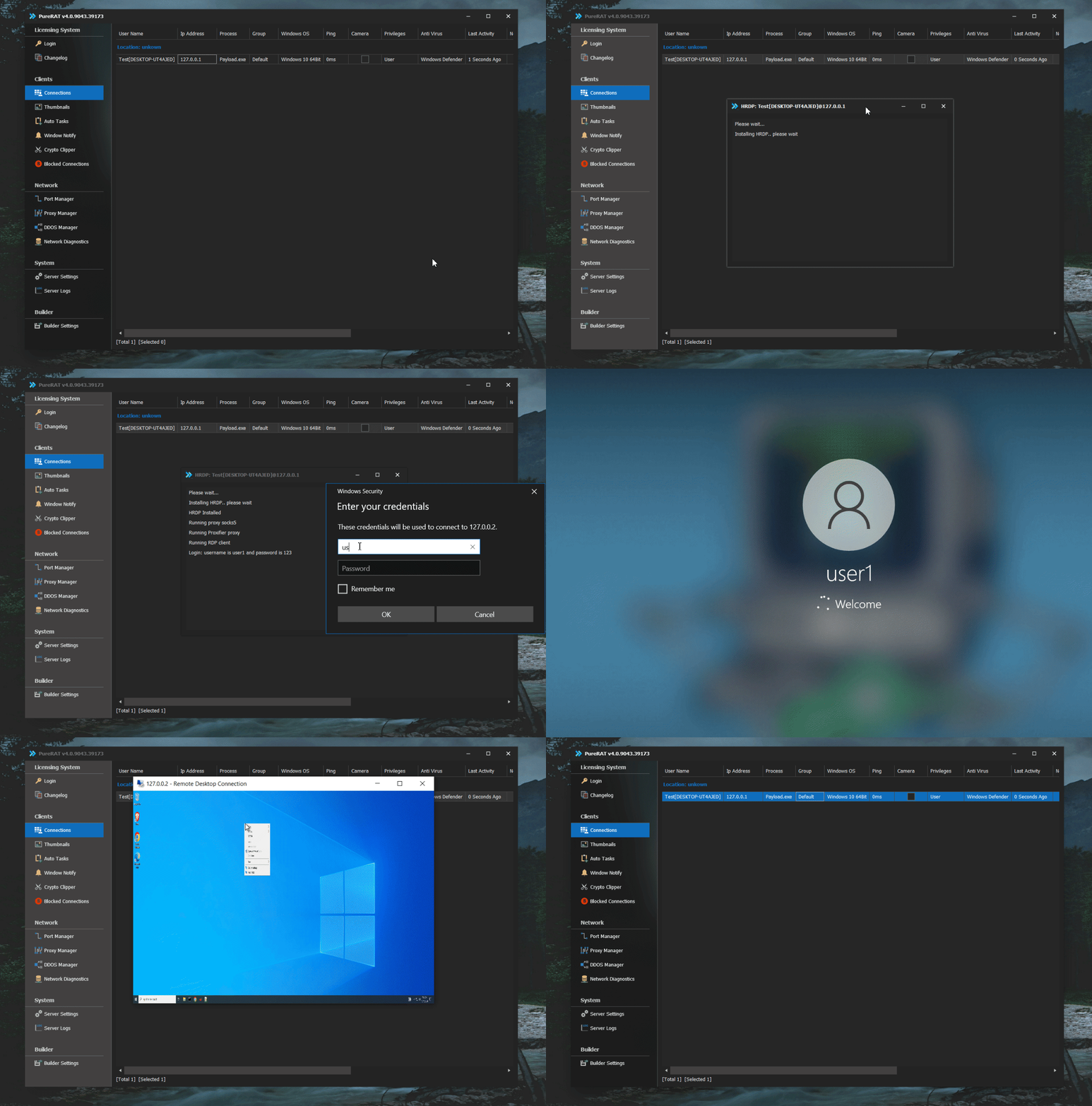
- If HRDP plugin is not installed, PureRAT installs it automatically (may take up to 20 seconds).
- Login: user123 / 123
- If client does not have admin rights, UAC will show once. After that, no prompt.
How to Use a Reverse Proxy?
System Requirements
- VPS running Windows Server 2019 or newer
- Open ports enabled
Set Up Reverse Proxy in PureRAT
- Open PureRAT
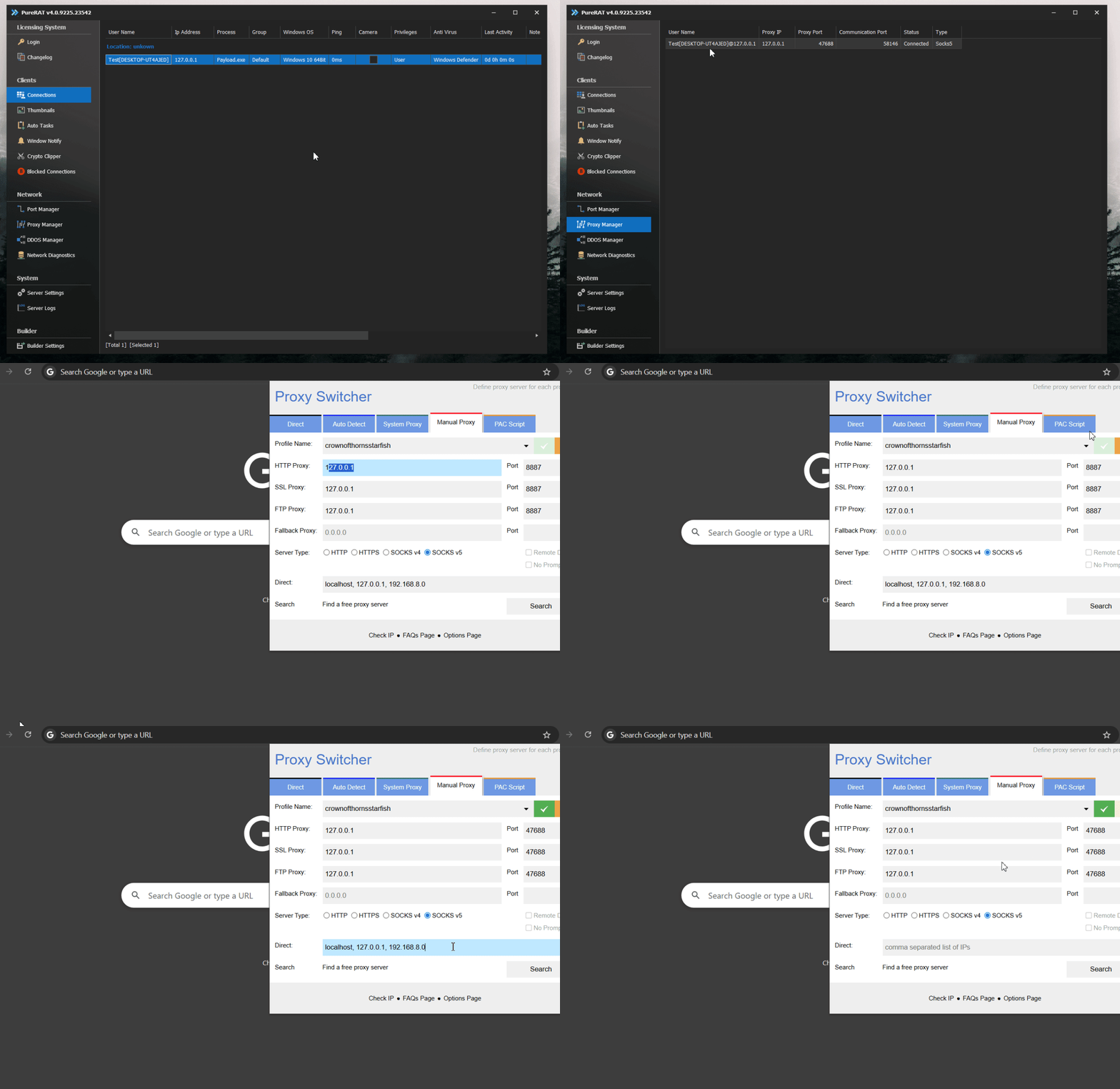
- Navigate to Manager → Reverse Proxy → SOCKS5
Set Up SOCKS5 in Browser
- Install a SOCKS5 browser extension (e.g., Proxy SwitchyOmega)
- Enter the IP and port shown in the Reverse Proxy tab
- Apply settings to start tunneling traffic
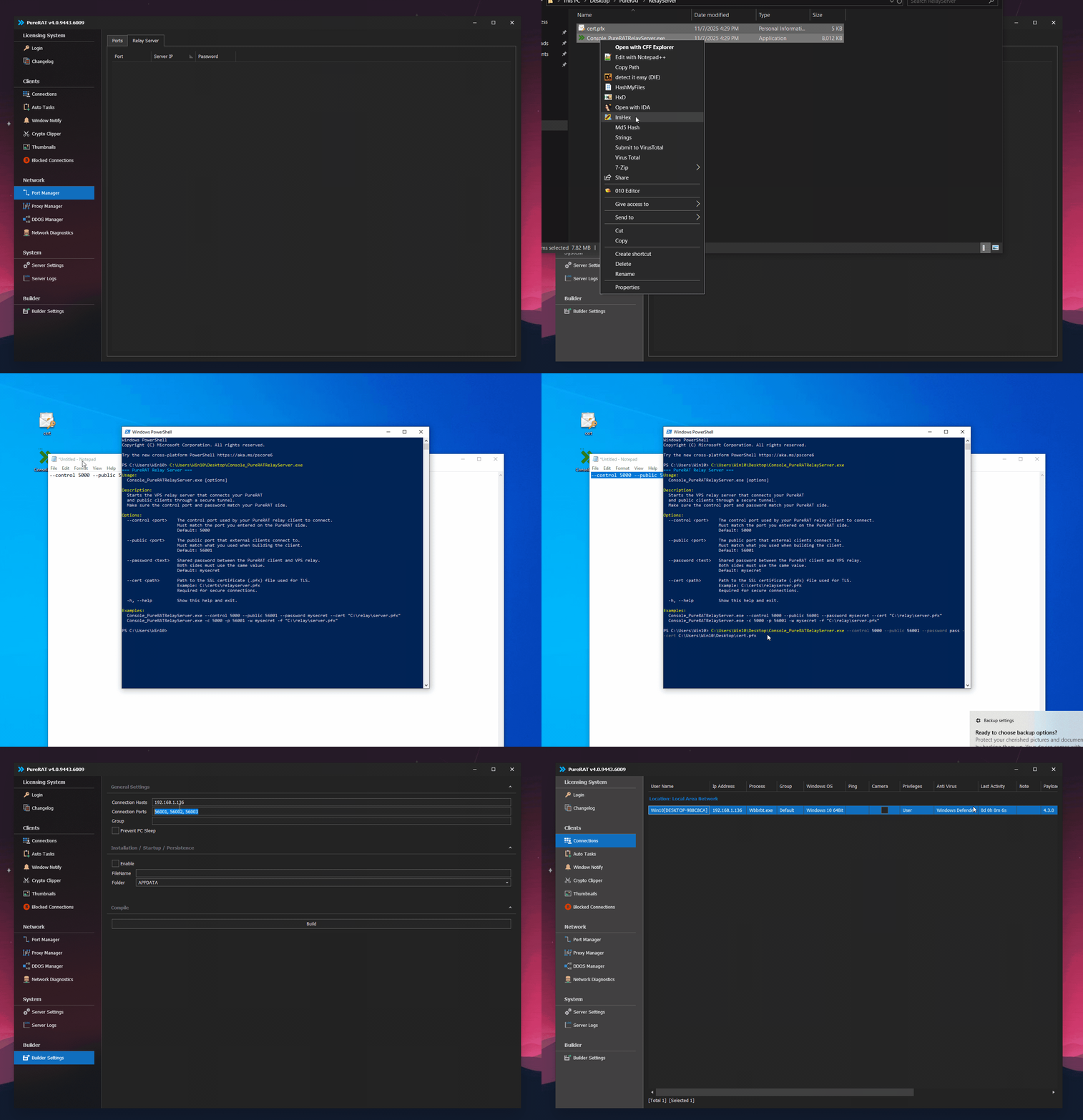
How to use relay server?
- Run PureRAT on your PC, then go to "Port Manager" and click "Relay Server".
- Right-click and select from the menu "Add Server".
- Enter your VPS IP. In the next field, enter a random port such as 5000. The last option is the password, it secures the connection, so use anything like pass123.
- Now right-click again and select from the menu "Get Relay Server App".
- Copy the two files to your VPS.
- Use CMD or PowerShell to run the app.
- You will see an example of how to use the app, such as: --control 5000 --public 56001 --password pass123 --cert "C:\relay\server.pfx"
- --control corresponds to what you set during the "Add Server" step. --public is the port you used when building your client.exe.
- Start the RelayServer.
- Then go back to PureRAT, open "Build Settings", and enter your VPS IP (same as in the "Add Server" step) and the port (same as --public).